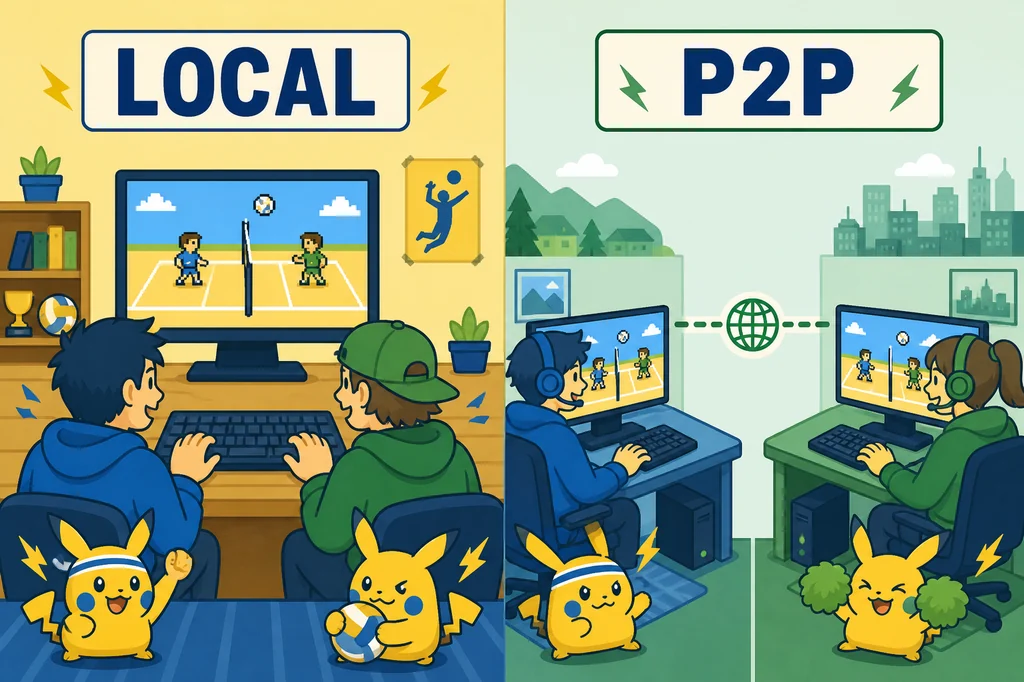
Choose first: local two-player or remote P2P?
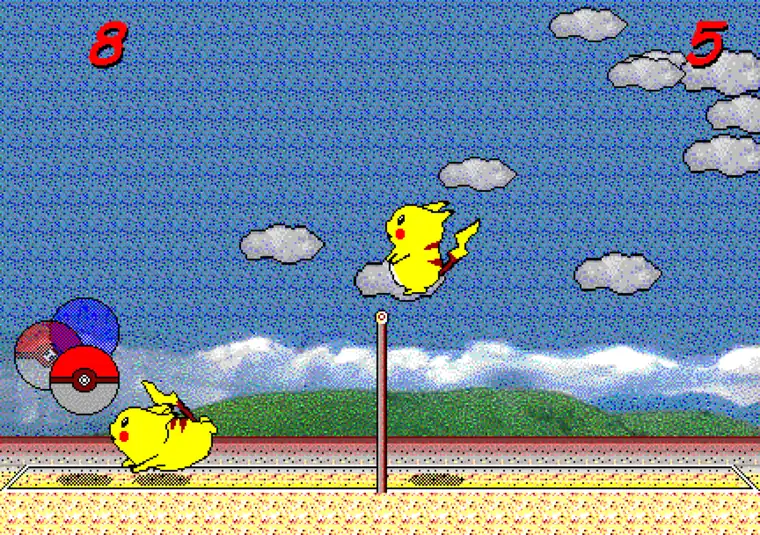
Pikachu Volleyball multiplayer can describe two different play situations. If both players are in the same room, the basic browser version is enough. Split the controls between the left and right sides of one keyboard, click the game frame, and start a short rally without installing an old executable.
If your friend is somewhere else, separate same-screen local play from remote P2P play. The basic version is designed for immediate browser play and local matches. Remote play belongs to a related P2P project and can depend on permissions, network quality, and the exact setup used by both players.
| Option | Best for | Prepare | Watch for |
|---|---|---|---|
| Local two-player | Two people sharing one screen | One keyboard and game-frame focus | Make sure the key layout does not overlap |
| Remote P2P | Friends in different locations | P2P room, browser permissions, stable network | Latency, firewall behavior, and browser setup |
| Solo practice | Learning controls before a match | Basic browser game and keyboard | Test input before changing multiplayer settings |
Set up local two-player keyboard play
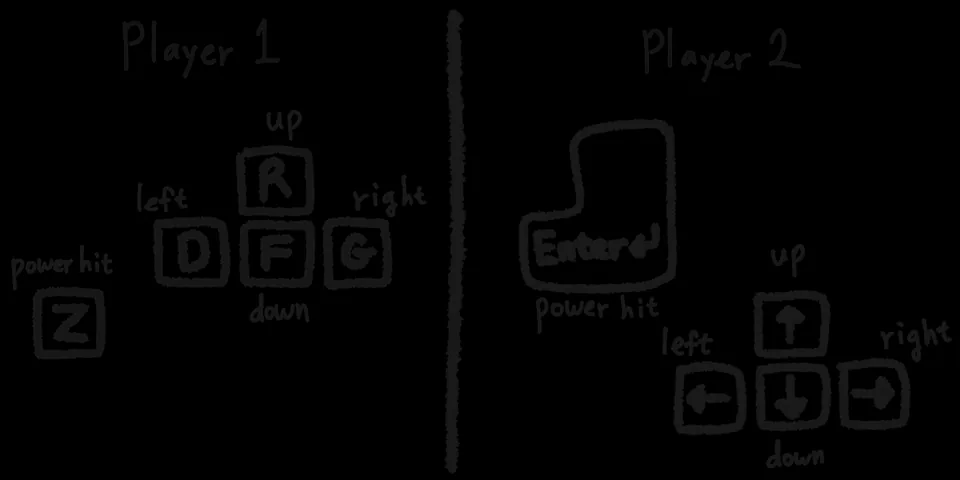
Local two-player play is the quickest way to try Pikachu Volleyball multiplayer. Open the browser game, decide which keys each player will use, and click inside the game frame so it receives keyboard input. In the first rally, agree on sides and jump timing before trying powerful shots.
If the controls feel confusing, read the controls guide before changing the game setup. Fullscreen makes a shared screen easier to read, while leaving enough room around a laptop keyboard helps prevent accidental input from the other player.
- Open the basic browser game and confirm that the title screen has loaded.
- Click the game frame to give it keyboard focus.
- Split movement, jump, and selection keys before starting.
- Play one short rally to check both players' inputs.
- If a key does nothing, click the frame again and retest it.
Prepare for a remote P2P match with a friend
Remote P2P play needs a different setup from local keyboard play. Both players should open the same P2P project flow and confirm whether one player creates a room, shares an invite, or uses a room code. The homepage game does not automatically create a remote room, so do not treat the basic browser version and the P2P version as identical.
If the connection does not start, check the page's requested network permissions, room details, link, and active tab before changing anything else. P2P is not the same as a server matchmaking game: both browsers and both network conditions can affect the result.
- Use the same P2P version or compatible project flow on both devices.
- Share the host room or invite details exactly as shown.
- Keep the game tab active while the connection is being established.
- If latency is high, check Wi-Fi congestion, VPNs, and browser extensions one at a time.
- If the connection keeps failing, use local two-player play to practise controls first.
Fix keyboard focus, fullscreen, and latency problems
The most common Pikachu Volleyball multiplayer problem is that the game is open but does not receive a key. Click the game area, press the selection key to see whether the menu responds, test movement, and then use fullscreen if needed. If another tab or the address bar has focus, both players' inputs can appear broken.
For remote P2P play, first check whether both players experience the same delay. If only one side is slow, inspect that device's tab, network, and extensions. If both sides are slow, the connection path or network quality may be the limiting factor. Change one condition at a time so the cause stays clear.
- Test game-frame focus, menu selection, movement, and jump in that order.
- If fullscreen does not help, click the game frame again.
- Check whether keyboard shortcuts overlap with the game controls.
- For P2P latency, inspect each player's network and extensions separately.
- Compare with local play and the controls guide to isolate connection issues.
Which Pikachu Volleyball multiplayer route fits?
For a quick match in the same room, local two-player play is the simplest route. If both players are still learning the controls, practise solo first and then start with a short shared-keyboard rally. On a phone or tablet, check the screen orientation and external keyboard before expecting comfortable two-player input.
Choose remote P2P only when the connection feature is worth the extra setup. If troubleshooting takes longer than the match, local play or taking turns may be more reliable. The download guide is for users who specifically need source or file information; the basic browser game does not require an unclear executable download.
| Goal | Recommended route | Next page |
|---|---|---|
| Two people in one room | Basic browser game and one keyboard | Controls |
| A friend in another location | Check the P2P connection flow | Online version guide |
| A key is not responding | Check focus and key assignments | Controls |
| Phone or tablet | Use landscape mode and an external keyboard | Mobile guide |