
- Background music
- One MP3 track set to loop
- BGM control
- Options → BGM → on or off
- Sound effects
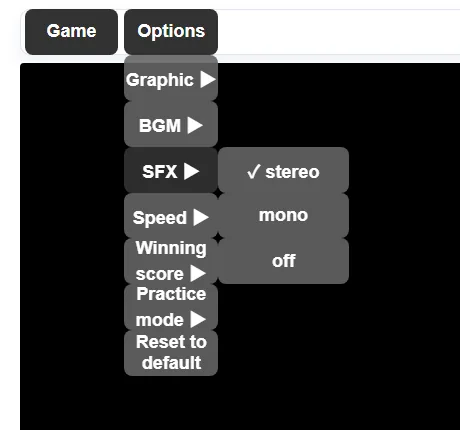
- Stereo, mono, or off
- Saved preference
- Stored in the current browser
Listen first: what is the Pikachu Volleyball BGM?
The music heard in this site’s playable game comes from the bundled bgm.mp3 file in the verified JavaScript project. The game loads that file as its background-music channel, starts it when play begins, and repeats it instead of moving through a multi-track soundtrack. The player below uses the same local asset, so it is the clearest way to identify the tune without relying on an unrelated video upload.
BGM means background music. It is not the same as the short sounds used for hits, jumps, menu actions, or other game events. The browser edition exposes separate controls for BGM and SFX, which means you can keep the music while muting effects, or silence the music while keeping gameplay feedback.
Pikachu Volleyball background-music preview
Press play to preview the same looping MP3 used by the game. Browser autoplay rules may require this manual click.
How to turn Pikachu Volleyball music on or off
Open the game, select Options in the menu bar, then open the BGM submenu. Choose on to hear the looping music or off to mute only the background track. This does not pause the match and does not disable the separate hit and movement effects.
The selected BGM setting is saved in browser storage. When you return in the same browser profile, the game normally restores the previous choice. Private browsing, clearing site data, changing browser profiles, or opening the game on another device can reset that preference.
- Open Options at the top of the game.
- Choose BGM, then select on or off.
- Use SFX separately if you also want to change hit sounds.
- Reload once if an old stored setting is not reflected immediately.
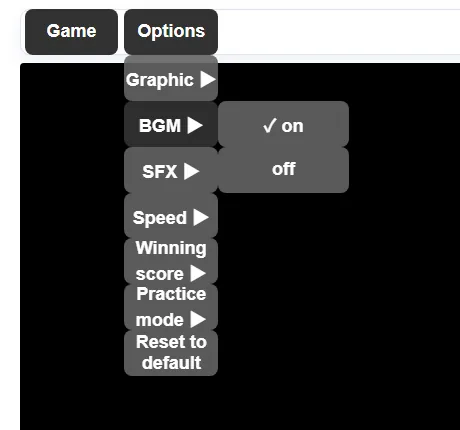
BGM vs SFX: choose the sound you actually want
BGM is the continuous music bed. SFX are short effects connected to the rally and interface. In the current browser game, SFX can be stereo, mono, or off. Stereo keeps left and right positioning, mono combines the effect channels, and off removes those effects while leaving the BGM choice unchanged.
For quiet practice, many players turn BGM off but keep SFX on because impact sounds provide useful timing feedback. For recording commentary or playing in a shared room, turning both channels off may be more convenient. Choose the combination that matches the situation rather than muting the entire browser tab by default.
No sound? Check the browser before blaming the game
Modern browsers often block audio until a user clicks or presses a key. Start the game or press play in the preview before deciding that the file is broken. Then check the tab mute icon, the operating-system volume mixer, connected Bluetooth or HDMI output, and the in-game BGM and SFX selections.
If only this game remains silent, reload the page and test in a normal window. A private window or another browser profile can reveal whether stored site settings or an extension caused the problem. If the music preview works but game effects do not, inspect SFX rather than BGM. If effects work but the tune does not, reopen Options and set BGM to on.
- Click inside the game once to satisfy autoplay restrictions.
- Confirm that the browser tab and site are not muted.
- Check the active speaker or headset in the system volume mixer.
- Set BGM to on and SFX to stereo or mono.
- Reload, then test a private window if saved settings seem stuck.
How looping, volume, and saved settings work
The project source marks the BGM sound as looping. It also assigns a lower internal level to the music than to the effects so the continuous track does not overwhelm rally feedback. These values are implementation details, not a user-facing volume slider; the menu offers on or off for BGM and stereo, mono, or off for SFX.
The UI saves choices such as BGM and SFX in local browser storage. That explains why the setting can survive a normal refresh but disappear after site data is cleared. It also means the preference is local to a browser profile and is not an account setting synchronized across devices.
Can you download or reuse the Pikachu Volleyball music?
The player above exposes the asset required by the playable browser game, but its presence does not automatically grant permission to republish the music, claim it as an official Pokémon soundtrack, or reuse it commercially. This site is a fan-made play and information hub, and the JavaScript project is a reverse-engineered web implementation rather than an official Nintendo or Pokémon release.
If you need audio for a video, stream, mod, or another website, review the source repository, its license, the history of the original game, and the policies of the platform where you plan to publish. Do not rely on a random MP3 mirror or a video description that labels the file official without evidence.
Continue with controls, source, and safe play
Sound settings solve only one part of the experience. Use the controls guide to learn the keyboard layout, open the source guide to verify how the web edition is built, or review the download guide before trusting old executable files from third-party sites.