- Recommended route
- Chrome + physical keyboard
- Install required
- No for browser play
- Touch input
- Possible, but not preferred
- First check
- Focus the game frame
Can you play Pikachu Volleyball on a Chromebook? Start with the answer
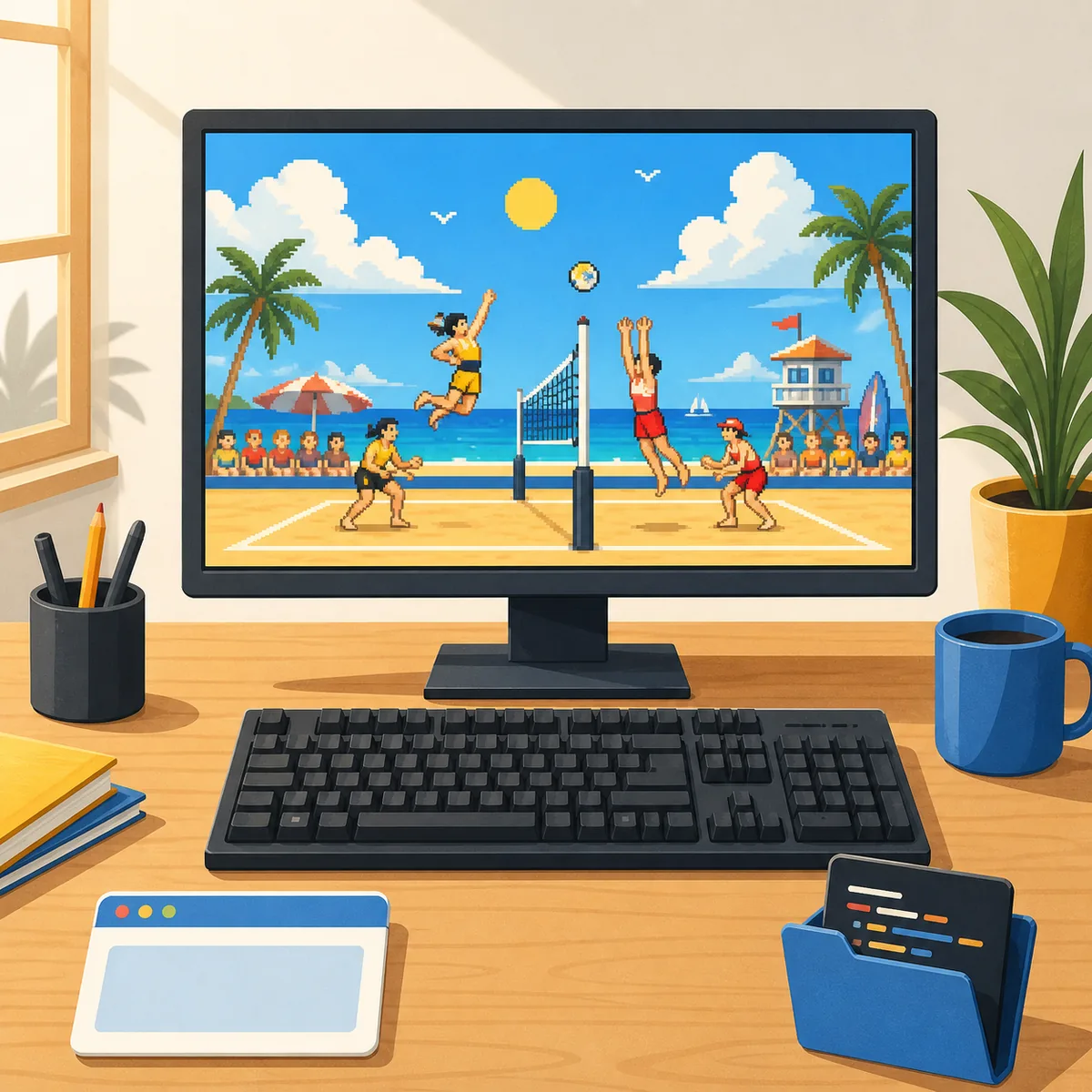
Yes. Pikachu Volleyball Chromebook play starts in the Chrome browser, where the web version runs as a JavaScript game. You do not need a Windows installer, an Android package, or a special Chromebook edition to begin a short match. Once the page is loaded and the game receives keyboard input, you can play the same compact one-on-one court described by the rest of this site.
Opening the page and controlling the character are separate checks. A Chromebook may show the game perfectly while the address bar, another tab, or a school web app still owns keyboard focus. Click inside the game frame, test one menu key, and only then start a serious rally. That small focus check prevents many false reports that the game does not work.
This page has a narrow device boundary. The PC guide discusses Windows and desktop choices, the controls guide owns the complete key map, the mobile guide covers phones and tablets, and the download guide covers source and executable safety. Here the task is to make a Chromebook browser session playable and recoverable.
- Open the homepage in a normal Chrome tab and wait for the title screen.
- Click the game frame, then test a direction or menu key.
- Use fullscreen for a larger court, then click the frame again.
- Try the browser route before looking for an APK, EXE, or unknown installer.
Choose the browser route instead of an APK or old EXE
Search results for Pikachu Volleyball on Chromebook can mix an Android APK, a Windows EXE, a source ZIP, and a browser page. These files are not interchangeable. If the goal is to play now, the browser version is the lowest-friction route: Chrome loads the page without asking for administrator access, a package name, or a separate installer. ChromeOS Linux and Android containers are not prerequisites for a normal match.
A GitHub Download ZIP is a source tree, not a finished Chromebook app. Use it when you want to inspect or build the web project, and read the current README and package.json before running Node.js commands. Extracting a ZIP does not create a verified launcher, and a source version should not be described as a packaged release.
An APK or EXE from an unknown mirror needs independent proof of its publisher, checksum, license, and release history. A familiar filename, icon, or claim that it is the latest version is not proof. This page keeps the claim modest: use the browser for play, and use first-party source links when you want to study the project.
| Your goal | Recommended route | What to check |
|---|---|---|
| Play a match now | Chrome browser | Game focus and physical keyboard |
| Study the source | First-party GitHub repository | README, package.json, and current commands |
| Find the old Windows file | Historical research only | Publisher, checksum, and license evidence |
| Play briefly on a phone | Mobile browser + Bluetooth keyboard | Landscape view and readable court |
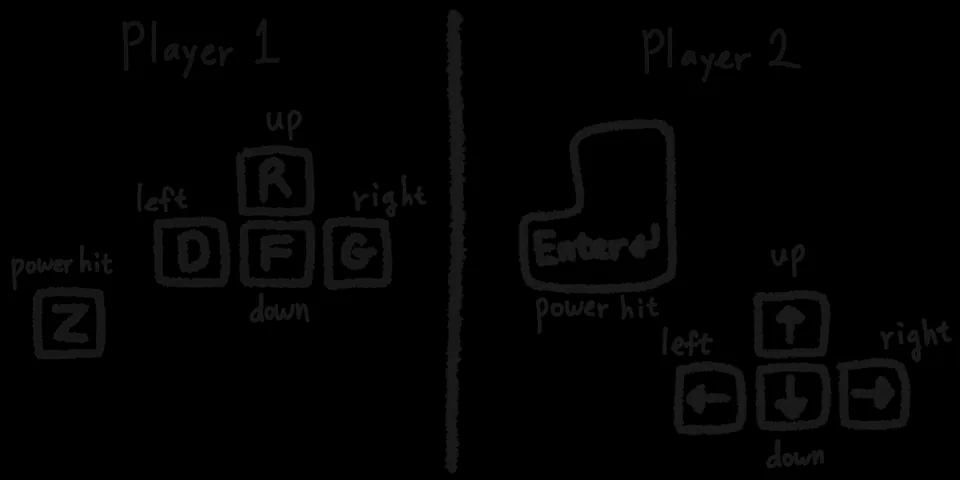
Set up a Chromebook keyboard and fullscreen in five steps
The first step is to stabilize the browser state, not to install more software. A managed Chromebook can limit popups, extensions, keyboard shortcuts, storage, or fullscreen, so test the actual page you plan to use. Keep one game tab open during the first check; extra tabs make it harder to tell which surface owns the keyboard.
Step one: open the homepage in Chrome and wait until the game title screen is visible. If the frame is blank, refresh once and wait for the assets rather than pressing keys during loading. Step two: click the center of the game frame. This transfers focus away from the address bar or another input area.
Step three: press one short menu or direction key and watch for a response. Step four: open fullscreen if the court is too small, then click the frame again because fullscreen does not guarantee input focus. Step five: play a short rally as a device test. Check that movement, jump timing, and the court view are stable before trying advanced shots or a close two-player match.
- Use one Chrome tab and wait for the title screen to finish loading.
- Click inside the frame and test one key before starting a match.
- Turn on fullscreen only when it improves the court view.
- Click the frame again after entering fullscreen.
- For two players, test both key layouts before the first rally.
Fix keyboard, window, sound, and loading problems
If the court is visible but the character does not move, restore focus before blaming the game. Click the frame, close or minimize other input surfaces, and press one key at a time. If there is still no response, refresh and wait for the title screen again. Rapidly repeating a key can make a Chrome shortcut look like a game failure, so keep the first test deliberately small.
If the ball is hard to see, use fullscreen and a stable landscape-like window rather than extreme browser zoom. A narrow portrait layout reduces the space available for the ball arc and both landing areas. Raise brightness enough to distinguish the court, and place the Chromebook on a stable surface so the screen does not move while you press keys.
For missing audio, interact with the page once, then check the tab mute state, site permissions, and ChromeOS volume. Chrome may block autoplay until a user gesture occurs. If other sites have sound but this game does not, use the music guide's browser checks instead of installing a random audio extension.
A school or workplace Chromebook may apply a policy that blocks fullscreen, storage, popups, or keyboard behavior. Do not bypass that policy with an unknown extension. Ask the administrator whether the game page and its required browser features are allowed. The page cannot promise compatibility with every managed-device rule.
- No movement: click the frame and test one key on the title screen.
- Stalled loading: refresh once, close unused tabs, and wait on a stable connection.
- Small court: use fullscreen, then undo zoom that crops the game.
- No audio: check the page gesture, tab mute, site permission, and device volume.
- Managed device: ask an administrator instead of bypassing policy.
How Chromebook play differs from PC and mobile
A Chromebook sits between a desktop PC and a phone. It has a browser and a physical keyboard, so the input feel is closer to PC play, but ChromeOS policies and the active Chrome tab control focus and fullscreen. The PC guide's advice about a physical keyboard still applies; its Windows EXE and hardware discussion does not need to be copied into a Chromebook setup.
Compared with a phone, a Chromebook offers a wider display and a built-in keyboard. A tablet with a Bluetooth keyboard can provide a similar arrangement, but a mobile browser can change focus after an address-bar tap, language menu, or system popup. Touch-only overlays can also cover the court and make timing harder to read.
A desktop or laptop remains comfortable for long practice sessions, while a Chromebook is a useful low-install option for quick access. The underlying rule is the same on every device: open the browser version, connect the intended input device, focus the game frame, and observe one short rally before judging performance.
- Chromebook: a browser-first middle ground with a physical keyboard.
- Desktop PC: a larger, fixed setup for longer sessions.
- Tablet: useful when a Bluetooth keyboard can stay separate from the screen.
- Phone: workable for quick access, but less comfortable for reading the arc.
Practice and two-player limits on a Chromebook
When using practice mode on a Chromebook, check input timing and visibility before changing many game settings. Watch whether the ball remains readable at the top of its arc, whether a jump key arrives consistently, and whether you have enough time to choose the next direction after landing. Repeat the same short drill three times so device behavior is not confused with a single mistimed touch.
For local two-player play, test both sides of the shared keyboard. A single successful player test does not prove that the second layout is free from ChromeOS shortcuts or a cramped hand position. Let each player move and jump once before a competitive set, then adjust the Chromebook angle or keyboard position so both people can see the screen.
The basic browser page is not automatically a remote P2P room. If a friend is in another location, use the online guide to understand the separate P2P route, its connection conditions, and possible latency. Do not assume that the Chromebook label alone guarantees or prevents a remote connection; test browser and network behavior separately.
- Repeat practice with the same screen direction and keyboard.
- Test both player layouts before a shared-keyboard match.
- Treat remote P2P play as a separate route from the basic browser game.
- Record device policy or network delay before changing your play strategy.
Final Pikachu Volleyball Chromebook checklist
Run this checklist before a longer session. Seeing the game is not the same as being ready to play, so use the first rally as a device check. Change one condition at a time when something fails; otherwise a refresh, fullscreen toggle, keyboard reconnect, and policy change can hide the real cause.
When the browser route works, there is no reason to hunt for a separate app. If your goal is development, open the first-party repository and read its current README and dependency files. This guide describes a verifiable browser flow and public sources; it does not promise support for every Chromebook model, school network, or ChromeOS policy.
- The title screen is visible in a Chrome tab.
- One key responds after the game frame is clicked.
- Fullscreen shows the ball and both sides of the court.
- Tab mute, site permission, and ChromeOS volume have been checked.
- No APK, EXE, or ZIP is needed for the stated play goal.
- Both key layouts have been tested for a two-player session.